> ## Documentation Index
> Fetch the complete documentation index at: https://help.bidright.com/llms.txt
> Use this file to discover all available pages before exploring further.
# How pricing works
> How to use S-RPM, S-MIN, and S-LH to price lanes consistently.
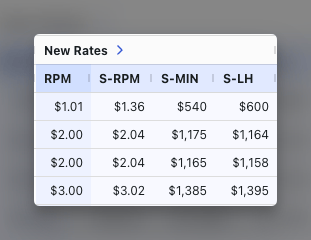
Instead of managing separate rates for each customer's file format, BidRight lets you set one standardized rate and apply it across every lane in the bid. This is called pricing with one number.
You enter your target rate once, and BidRight calculates the resulting rate for every lane automatically. You can still override individual lanes when needed.
## Standardized pricing inputs
BidRight normalizes rates into three standardized inputs so you can compare lanes consistently, regardless of how the customer's file is formatted.
| Input | Full name | What it represents |
| ----- | ------------------------- | ------------------------------------------------------------ |
| S-RPM | Standard Revenue Per Mile | The rate per mile, normalized for distance |
| S-MIN | Standard minimum charge | The minimum charge per shipment |
| S-LH | Standard linehaul rate | The linehaul component of the rate, excluding fuel surcharge |
Start with S-RPM for most accounts. Switch to S-MIN or S-LH only when the customer requires a different pricing basis.
 ## Price a bid
Navigate to the bid you want to price from your BidRight dashboard.
Select the **Pricing** tab. BidRight displays each lane with historical data (if available), suggested rates, and comparable market rates.
Type your target S-RPM in the pricing input. BidRight calculates the resulting rate for every lane in the bid.
Scan the lane list to confirm the calculated rates look right. Use the sort and filter controls to focus on high-priority lanes first.
Click any lane to edit its rate directly. Overrides do not affect your target S-RPM for other lanes.
Review the full rate sheet before exporting. Make sure all lanes have a rate assigned.
***
For details on the data available for each lane, see [Bid Detail Data](/pricing/bid-detail-data).
For information on how fuel surcharge affects your rates, see [Fuel Surcharge](/pricing/fuel-surcharge).
## Price a bid
Navigate to the bid you want to price from your BidRight dashboard.
Select the **Pricing** tab. BidRight displays each lane with historical data (if available), suggested rates, and comparable market rates.
Type your target S-RPM in the pricing input. BidRight calculates the resulting rate for every lane in the bid.
Scan the lane list to confirm the calculated rates look right. Use the sort and filter controls to focus on high-priority lanes first.
Click any lane to edit its rate directly. Overrides do not affect your target S-RPM for other lanes.
Review the full rate sheet before exporting. Make sure all lanes have a rate assigned.
***
For details on the data available for each lane, see [Bid Detail Data](/pricing/bid-detail-data).
For information on how fuel surcharge affects your rates, see [Fuel Surcharge](/pricing/fuel-surcharge).