

Summary
Auto Rate builds a proposed starting linehaul rate (fuel excluded) for every lane you’ve marked interest on. It works the way a good pricing analyst works: anchor on what you already charge, sanity-check that anchor against the market, adjust for profitability and how badly you want the lane, then show the reasoning, lane by lane.Auto Rate proposes. You decide. Every rate it sets is a starting point for your review, not a final answer. Nothing is decided black-box: every lane comes with its reasoning attached.
When to use this
After Interest
You’ve finished the Interest stage on a bid and want a fast, defensible first pass at rates.
Large bids
You’re staring at hundreds or thousands of lanes and need a starting point on all of them.
Understanding a rate
You want to understand why Auto Rate landed on a particular number.
Before you run
You’re deciding what to put in the Pricing note or Market Temperature before running it.
Before you run Auto Rate
Three things shape the result before you ever click the button. Get these right and Auto Rate does far better work.1
Mark interest on your lanes
Auto Rate only prices lanes with interest marked. Lanes without interest are skipped entirely.Interest also tunes aggressiveness. High-interest lanes are priced slightly more competitively to improve your odds of winning. Low-interest lanes are priced firmer, accepting a higher chance of losing the lane. Medium is neutral.
2
Set your Market Temperature
Market Temperature lives in Pricing Defaults. It’s your read on the freight market right now: On Fire, Hot, Neutral, Cold, or Very Cold. Auto Rate weights it heavily when judging how aggressive rates can be. Full breakdown in the Market Temperature section below.
3
Write your Pricing note on the bid
The Pricing note on a bid (marked Guides Auto Rate) is read as your strategy for this customer. A sentence or two is plenty:
- “Protect this incumbent volume. Don’t rock the boat.” → tightens how closely Auto Rate holds your existing rates
- “We’re willing to lose freight here. Get paid.” → leans rates higher
- “Want to grow this network. Let’s win it.” → leans rates more competitive
- “These rates are stale and need a reset.” → allows more movement off your historical rate
Running Auto Rate
From the bid’s rate grid, choose Auto Rate. A confirmation dialog tells you how many lanes will be priced and what Market Temperature is currently set.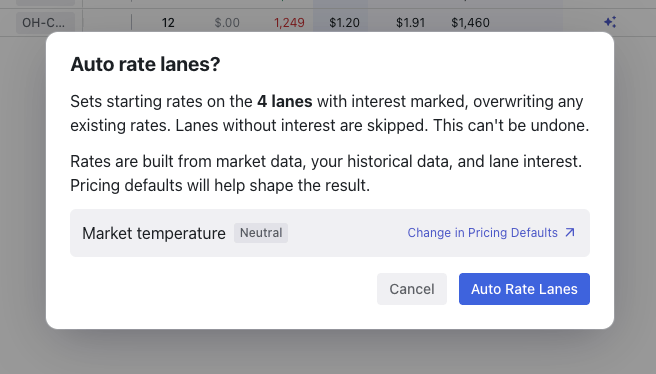
What Auto Rate looks at
Auto Rate works strictly from the data on the lane. It does not invent market data, volumes, or operating ratios that aren’t there. When data is thin, that uncertainty shows up in the confidence level instead of a guessed number.How Auto Rate decides
1
Anchor
Start from the most trustworthy rate available. Freight you already haul for this customer anchors on your historical rate. New lanes anchor on market rates.
2
Sanity-check against the market
Compare the anchor against Carrier First, market, and custom rates. Market sitting well above your incumbent rate is real opportunity: lean up. Market at or below the anchor: hold the incumbent. On new lanes, the rate stays inside the band those references define.
3
Adjust, in order
Market Temperature first, then your bid strategy, then lane profitability, then interest level, then any customer target rate.
4
Commit and explain
Auto Rate sets the rate, assigns a confidence level, and writes out its reasoning across Anchor, Historical, and Market Data.
Market Temperature
Your read on the market, set in Pricing Defaults. This is the single biggest lever you control.
Reading the results
Open the rate logic indicator on any auto-rated lane to see how Auto Rate got there.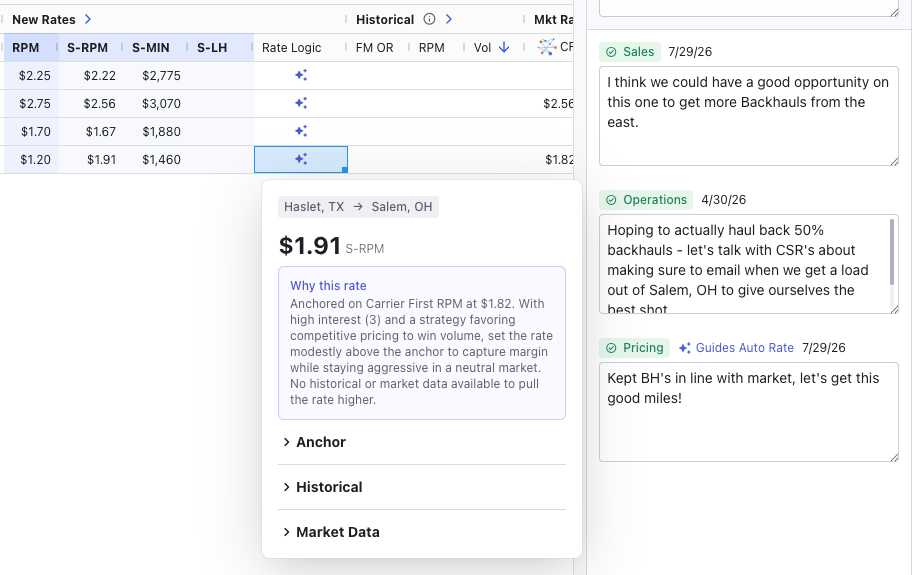
- Why this rate: plain-language bottom line: the anchor, and what moved the rate off it if anything did.
- Anchor: which value Auto Rate anchored on (Historical RPM, Carrier First Rate, or Market RPM), why, and how tightly it held.
- Historical: what your load history contributed: volume, incumbent rate, match quality, and profitability signals.
- Market Data: the sanity check: how the anchor compared to Carrier First, market, and custom rates, and how Market Temperature shaped that read.
What to watch for
- Review every rate. Auto Rate is a strong first pass, not a submit button. Spend your attention on high-volume incumbent lanes and anything with low confidence.
- Write a real Pricing note. One simple honest sentence of intent measurably changes the output. “Win this network” and “hold firm, we’re full” produce very different bids.
- Set Market Temperature honestly. Auto Rate trusts your read. If you’re not sure, Neutral lets the data speak for itself.
- Thin data still gets a rate. Auto Rate will default to pricing at a 90 OR if there is no data to help begin a starting rate.
- Similar lanes can get different rates. That’s usually correct. Different load history, match quality, profitability, or interest all move the number. Open the rate logic on each to see what diverged.
Related content
- Price with One Number: How the rate Auto Rate proposes becomes S-RPM and shipper rates
- FreightMath OR (Operating Ratio): What the OR values Auto Rate reads actually measure
- Area Control: How lanes get tagged for interest in the first place
- How to think about lanes: Evaluating lanes before and after the first pass
- The 6 Stage Workflow: Where Interest and Pricing fit in the bid lifecycle